
By following some simple steps, you can control which Darklup Accessibility tools appear in the panel. Turning off a module hides it completely from the frontend panel.
Step 1: Select the Accessibility Switch #
Go to Darklup Dashboard > Switch Styles > Floating Switch and make sure the Accessibility Switch is selected.
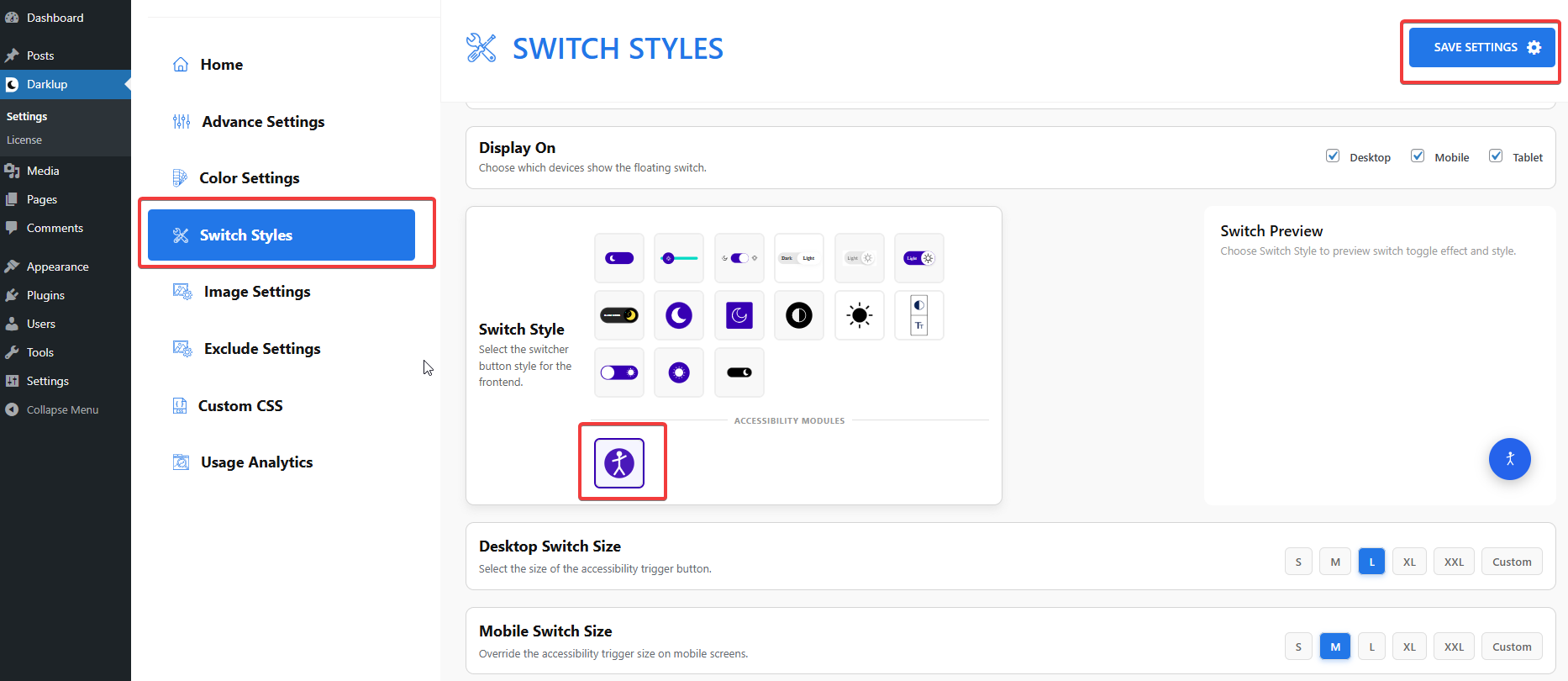
Step 2: Find the Module Toggles & Manage #
Scroll down below the switch grid. You will see three groups of module toggles:
- Contrast & Color: Dark Contrast, Light Contrast, High Contrast, Monochrome
- Typography: Bigger Text, Readable Font, Font Weight, Align Text
- Visual Aids: Reading Mask, Highlight Links, Hide Images, Stop Animations
Now you can click your preferred toggle next to any module to turn it on or off. Modules set to Off will not appear in the frontend panel.
Step 3: Save Settings #
Afterward, make all the changes, and then click “Save Settings”. The frontend panel will now show only the modules you have enabled.
Here, we have toggled off the High Contrast and Monochrome settings in the Contrast & Color section, as shown in the frontend changes in the image below.
This is how to enable and disable Darklup Accessibility modules in just a few steps. If you want to get all Darklup features, visit our documentation page for a step-by-step guide with all details.