
Darklup Accessibility Hide Images module removes all images from the page, helping visitors who find images distracting or who have slow connections. Text content remains fully visible.
This Accessibility Hide Images module sets all image elements to visibility: hidden, keeping the page layout intact while hiding the image content. The space the images occupied is preserved.
Step 1: Enable Accessibility Hide Images Module in Admin #
Go to Darklup Dashboard > Switch Styles > Floating Switch. Make sure the Accessibility Switch is selected.
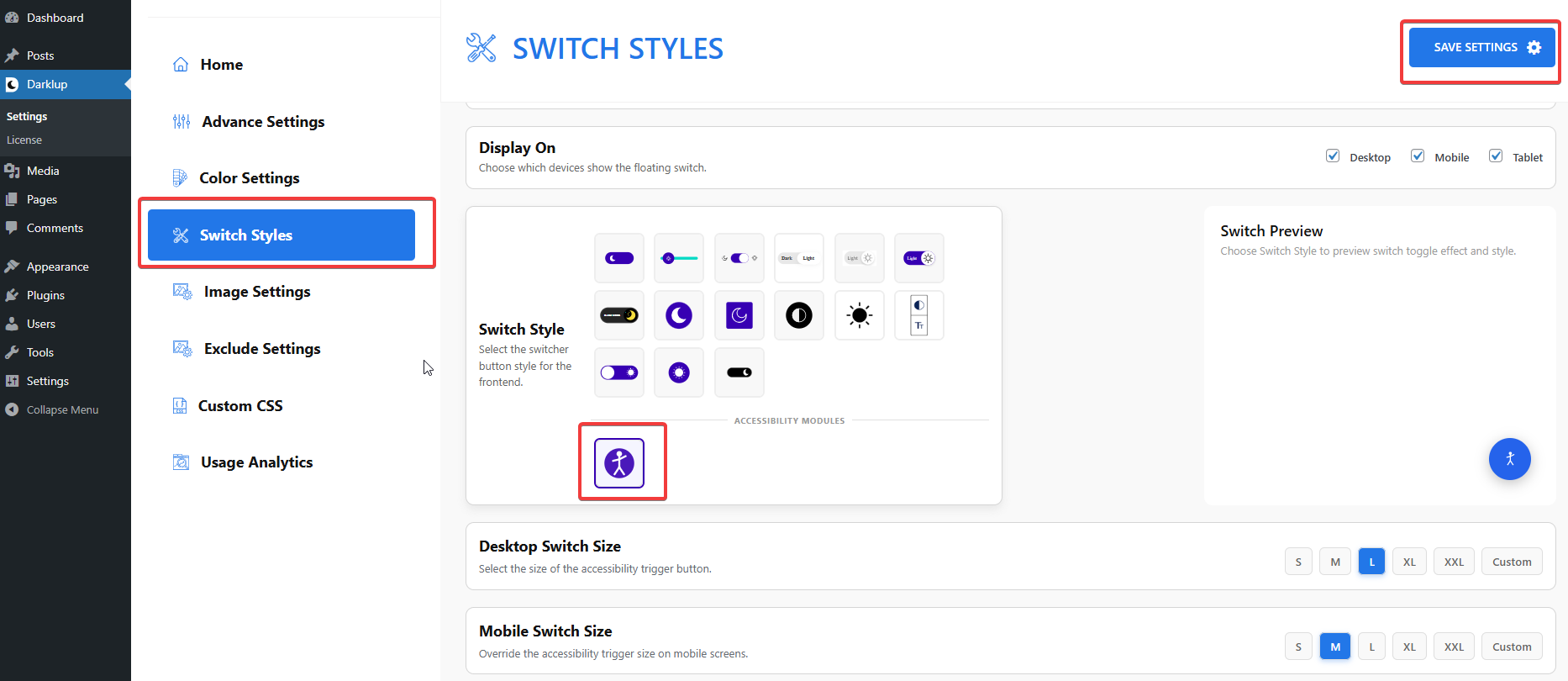
Scroll down to the Visual Aids group and make sure Hide Images is toggled On.
Step 2: Check Your Frontend Outlook #
When a visitor clicks Hide Images in the panel, all images on the page disappear. The page layout remains the same, but image areas appear blank.
Clicking the card again makes all images visible again.
This is how to configure Darklup Accessibility Hide Images Module in just a few steps. If you want to get all Darklup features, visit our documentation page for a step-by-step guide.