
Darklup Accessibility Light Contrast module forces a bright white background with dark text across the page. This is especially helpful for visitors using dark-themed websites who prefer a lighter reading environment.
This Accessibility Light Contrast module applies a white background and dark text (#27272d) to all content areas. Overrides Darklup’s dark mode if it is currently active.
Step 1: Enable Light Contrast Module in Admin #
First, navigate to Darklup Dashboard > Switch Styles > Floating Switch. Make sure the Accessibility Switch is selected.
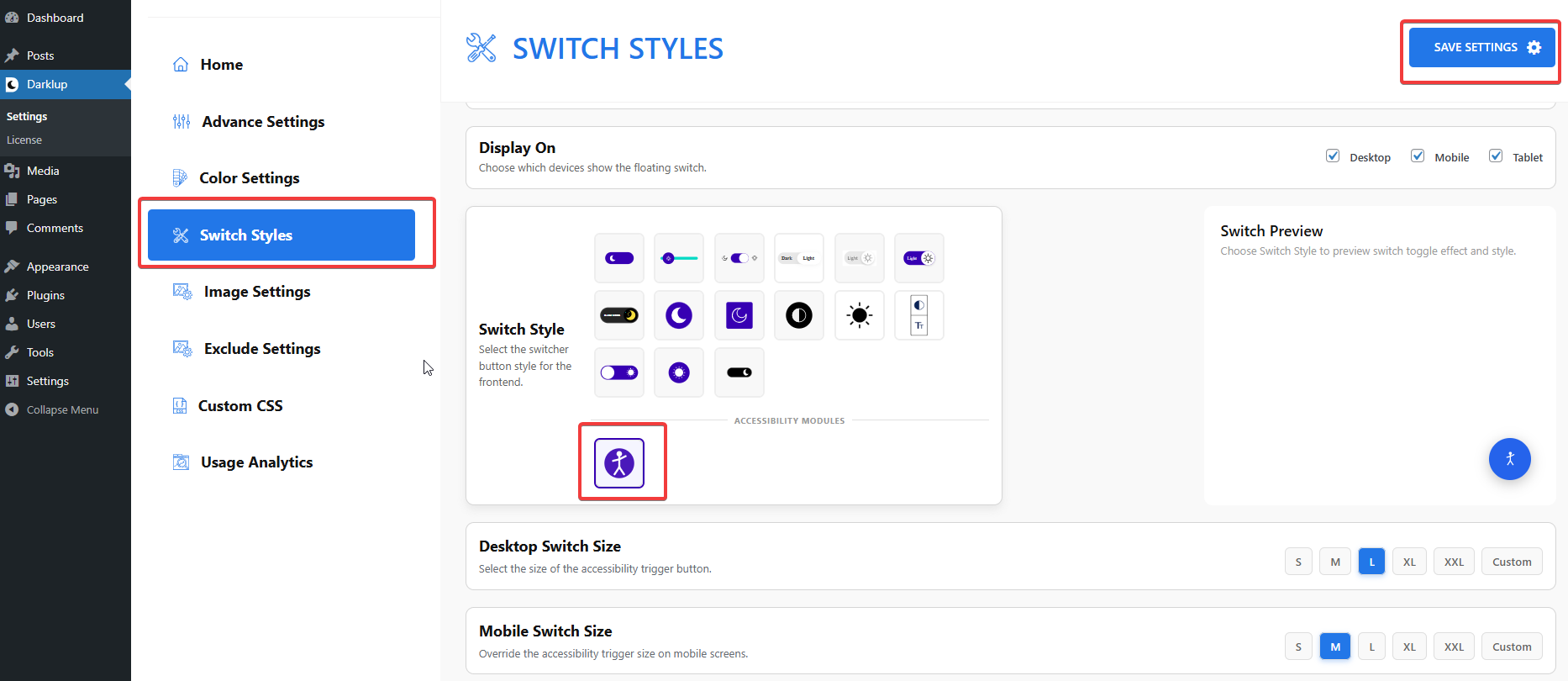
Afterward, just scroll down to the Contrast & Color group and make sure Light Contrast is toggled On.
Step 2: Check Your Frontend Outlook #
When a visitor clicks Light Contrast in the panel, this page switches to a clean white and dark text appearance.
Clicking the card again removes the light contrast and returns the page to its original appearance.
Note: Only one contrast mode can be active at a time. Activating Light Contrast will automatically turn off Dark Contrast and High Contrast.
This is how to configure Darklup Light Contrast module in just a few steps. If you want to get all Darklup features, visit our documentation page for a step-by-step guide with all details.