
Darklup Accessibility Bigger Text module helps you to enhance the font size of all text on the page, making it easier to read for visitors with visual impairments or those who prefer larger text.
This Accessibility Bigger Text Module increases the font size of paragraphs, headings, list items, labels, and other text elements by 25%. Headings scale proportionally.
Step 1: Enable Bigger Text Module in Admin #
Go to Darklup Dashboard > Switch Styles > Floating Switch. Make sure the Accessibility Switch is selected.
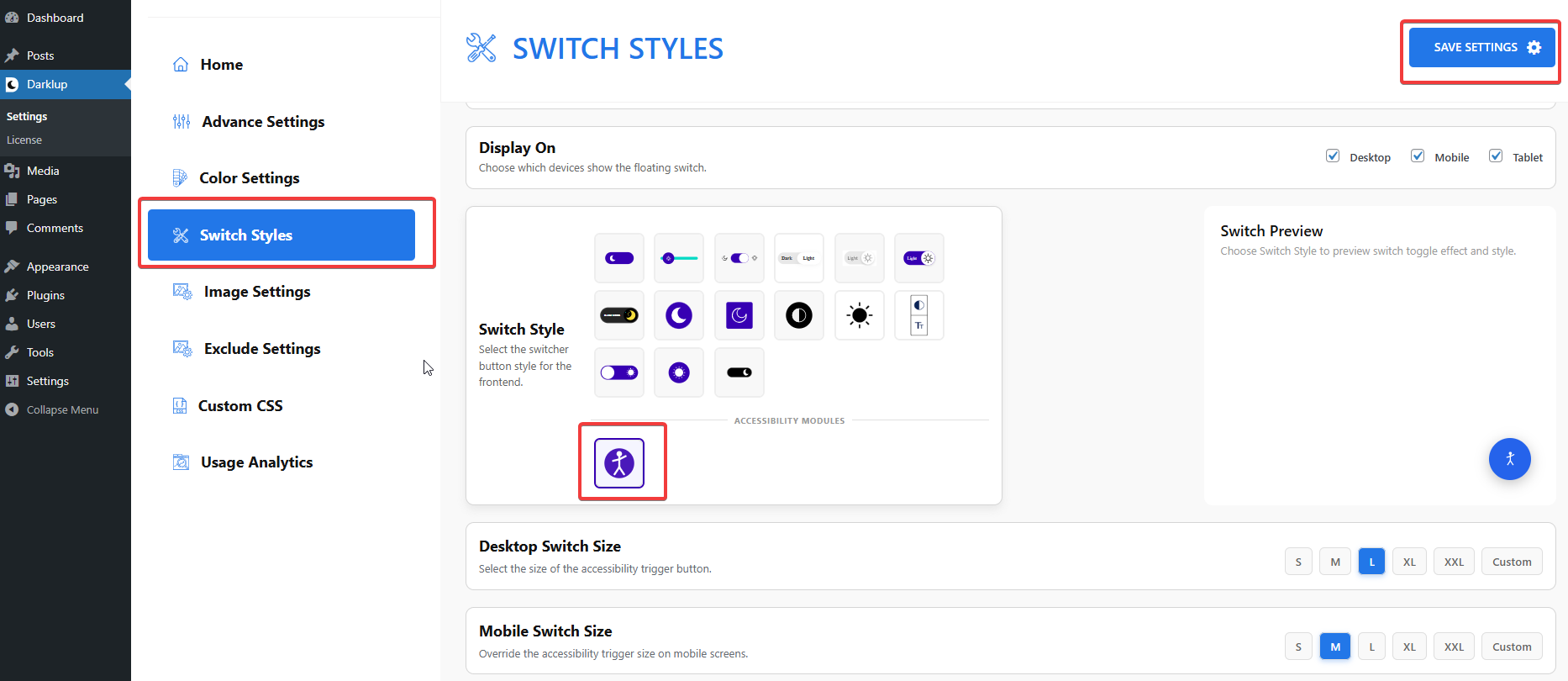
Afterward, just scroll down to the Text & Font group and make sure Bigger Text is toggled On.
Step 2: Check Your Frontend Outlook #
When a visitor clicks Bigger Text in the panel, all text on the page becomes noticeably larger.
Clicking the card again returns the text to its original size.
This is how to configure Darklup Accessibility Bigger Text Module in just a few steps. If you want to get all Darklup features, visit our documentation page for a step-by-step guide.