
Darklup Accessibility Monochrome module removes all colour from the page, displaying everything in greyscale. This helps visitors who are sensitive to colours or have colour vision deficiencies.
This Accessibility Monochrome Module applies a CSS greyscale filter (grayscale: 100%) to the entire page, converting all colours to shades of grey.
Step 1: Enable Monochrome Module in Admin #
Go to Darklup Dashboard > Switch Styles > Floating Switch. Make sure the Accessibility Switch is selected.
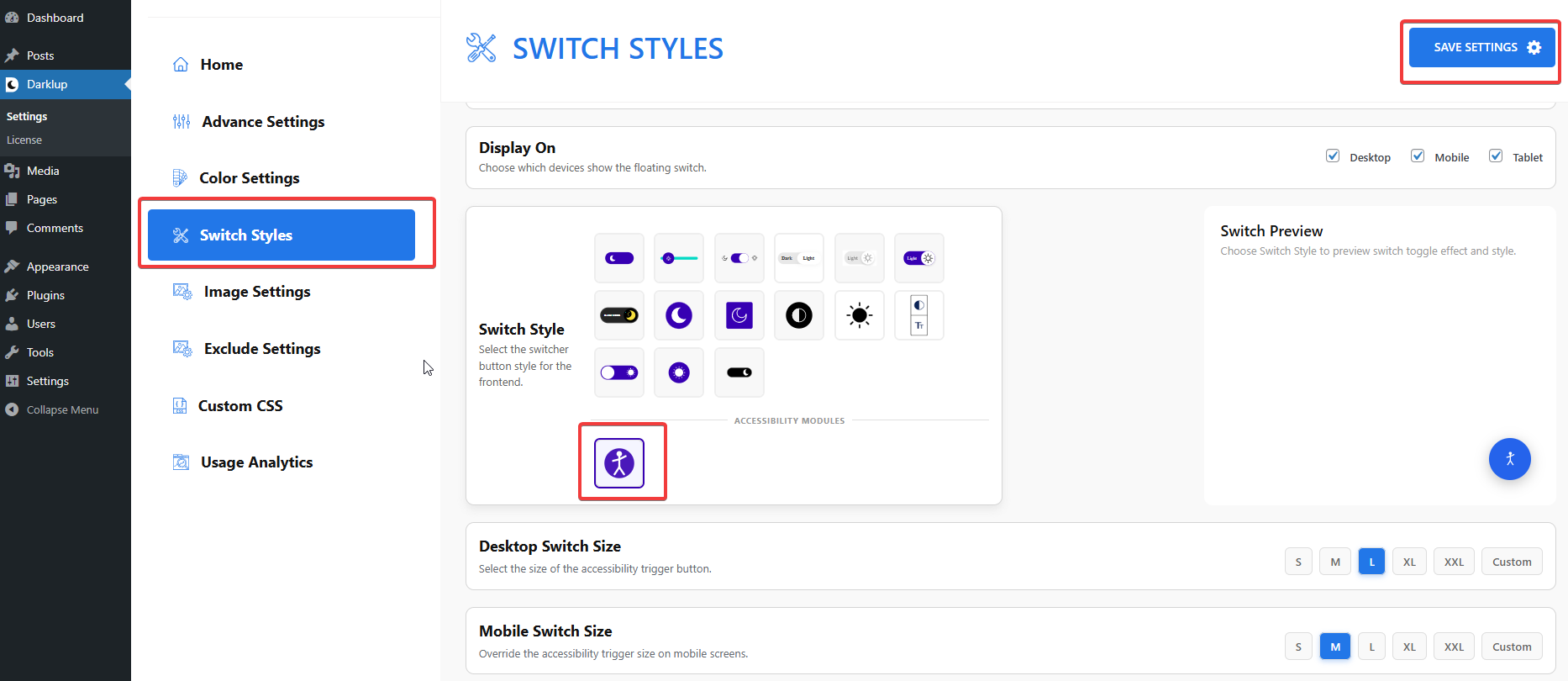
Scroll down to the Contrast & Color group and make sure Monochrome is toggled On.
Step 2: Check Your Frontend Outlook #
When a visitor clicks Monochrome in the panel, all colours on the page are removed and replaced with grey tones.
Clicking the card again restores all original colours.
Note: Two contrast modes can be active at a time. Activating Monochrome, you can pick any of the modules to activate at a time, such as Dark Contrast, Light Contrast, and High Contrast.
This is how to configure Darklup Monochrome module in just a few steps. If you want to get all Darklup features, visit our documentation page for a step-by-step guide with all details.