
Adding a dark mode switch to your website using the Gutenberg block editor is simple and effective. Navigate to the page or post where you want to add the dark mode switch. Open it in the Gutenberg block editor for customization.
In the Gutenberg editor, click the “+” icon to add a new block. Search for the Dark Mode Switch block provided by the Darklup plugin.
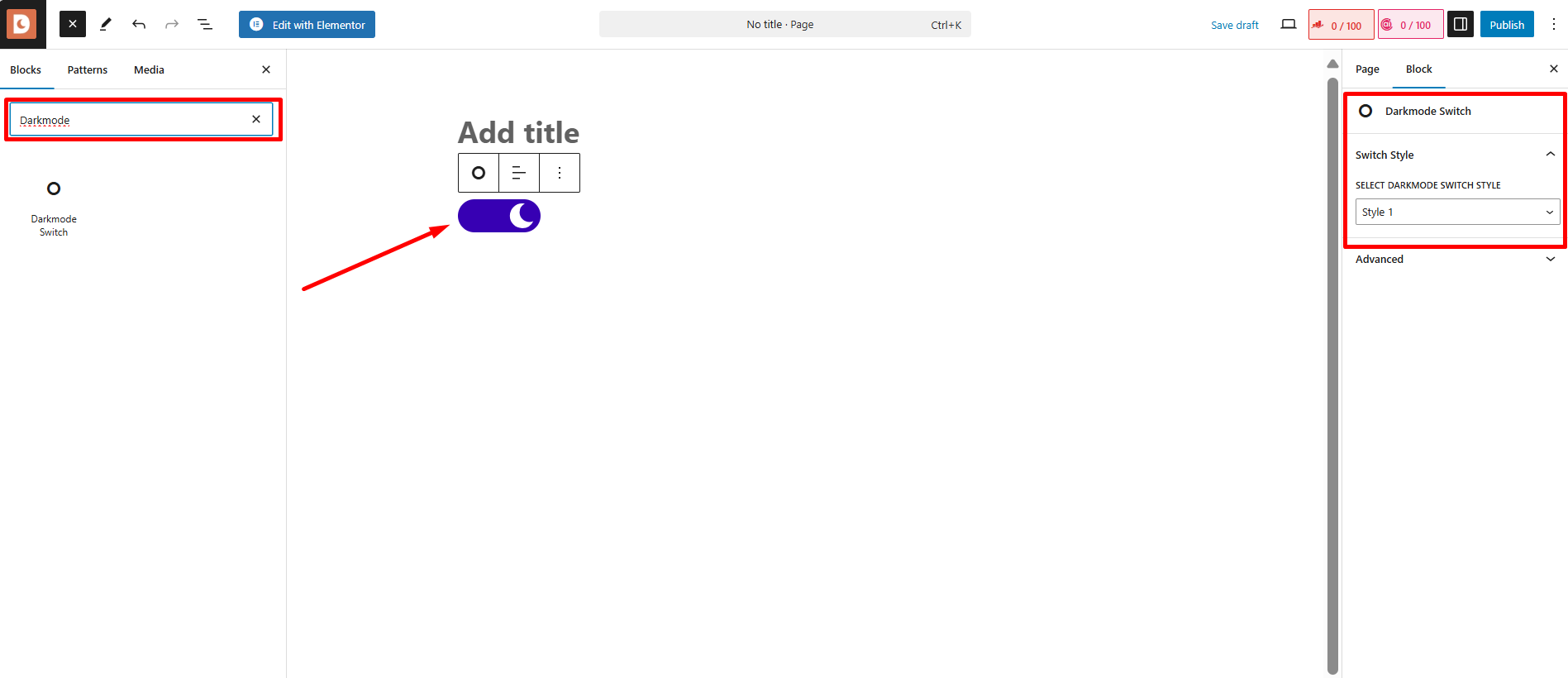
Select the block and place it in your desired location on the page. You can add it to your header, footer, or anywhere else that’s convenient for users to toggle dark mode.
Visit your live page to ensure the dark mode switch functions correctly. Toggle between light and dark modes to confirm the changes.
And that’s it! You’ve successfully added a dark mode switch to your website using the Gutenberg block editor. Your visitors can now enjoy a visually appealing dark mode experience with just a click.