
Darklup Accessibility Align Text module lets visitors choose how text is aligned on the page. Some users find left-aligned or centred text easier to read, depending on their reading preferences or disabilities.
This Accessibility Align Text Module cycles through three alignment states with each click: Left, Center, Right, then returns to the original alignment on the next click.
Step 1: Enable Accessibility Align Text Module in Admin #
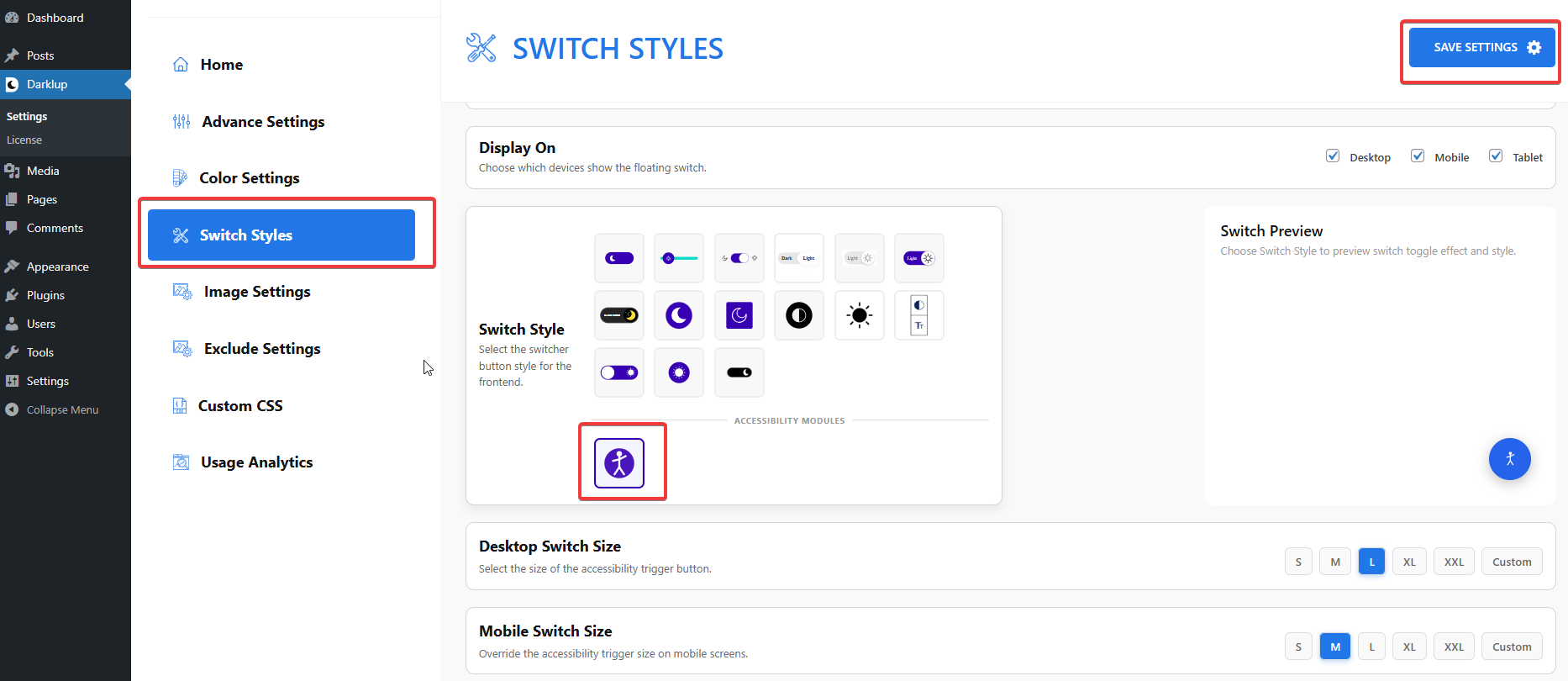
Go to Darklup Dashboard > Switch Styles > Floating Switch. Make sure the Accessibility Switch is selected.
Scroll down to the Typography group and make sure Align Text is toggled On.
How It Works on the Frontend #
The Align Text card cycles through states each time it is clicked:
- 1st click: Align Left — all text aligns to the left
- 2nd click: Align Center — all text centres on the page
- 3rd click: Align Right — all text aligns to the right
- 4th click: Deactivates and returns to original alignment
The card label updates to show the current active state (Like “Align Left”).
This is how to configure Darklup Accessibility Align Text Module in just a few steps. If you want to get all Darklup features, visit our documentation page for a step-by-step guide.