
Darklup Accessibility Readable Font module switches all text on the page to a clean, easy-to-read sans-serif font. This helps visitors who struggle with decorative or complex typefaces, including users with dyslexia.
This Accessibility Readable Font module applies a clean system font (sans-serif family) to all text elements across the page, overriding the theme’s font choice.
Step 1: Enable Accessibility Font Module in Admin #
Go to Darklup Dashboard > Switch Styles > Floating Switch. Make sure the Accessibility Switch is selected.
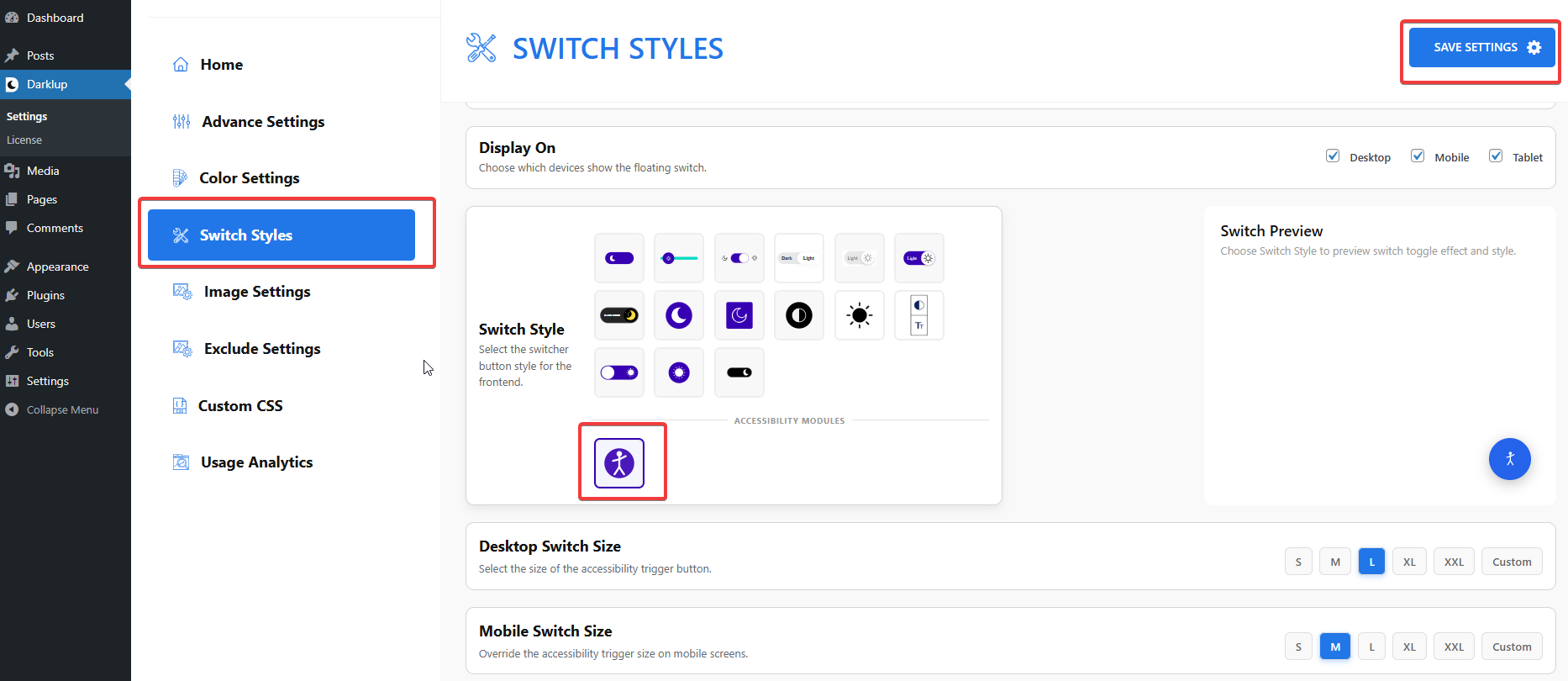
Scroll down to the Typography group and make sure Readable Font is toggled On.
Step 2: Check Your Frontend Outlook #
When a visitor clicks Readable Font in the panel, the page font changes to a plain, readable typeface.
Clicking the card again restores the original theme font.
This is how to configure Darklup Accessibility Font Module in just a few steps. If you want to get all Darklup features, visit our documentation page for a step-by-step guide with all details.