
Darklup Accessibility High Contrast module increases the contrast between text and backgrounds across the page. This helps visitors with low vision or colour vision deficiencies read content more easily.
This Accessibility High Contrast Module applies a CSS contrast filter (contrast: 140%) to all page content, making colours more vivid and text more distinct from backgrounds.
Step 1: Enable High Contrast Module in Admin #
First, navigate to Darklup Dashboard > Switch Styles > Floating Switch. Make sure the Accessibility Switch is selected.
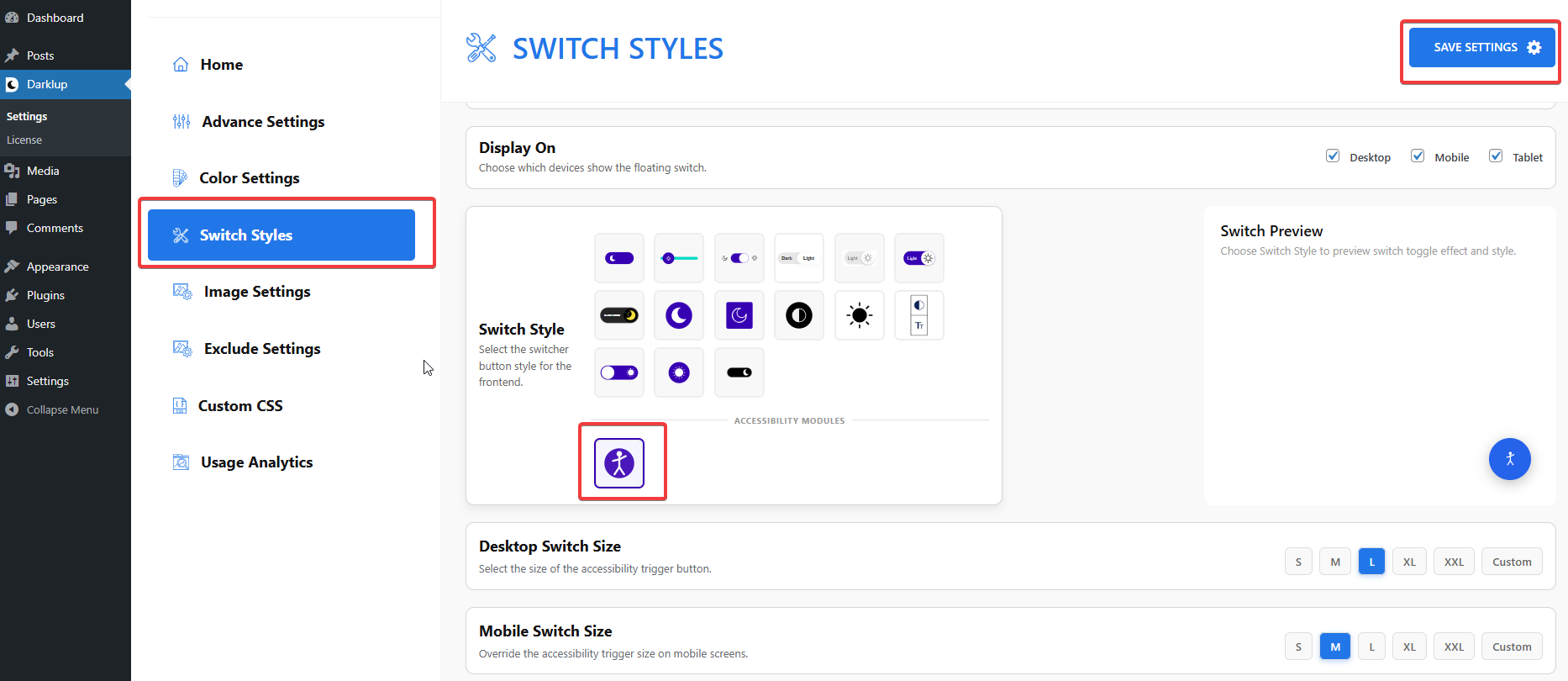
Afterward, scroll down to the Contrast & Color group and make sure High Contrast is toggled On.
Step 2: Check Your Frontend Outlook #
When a visitor clicks High Contrast in the panel, colours on the page become stronger and text stands out more clearly.
Clicking the card again removes the high contrast filter.
Note: Only one contrast mode can be active at a time. Activating High Contrast will automatically turn off Dark Contrast and Light Contrast.
This is how to configure Darklup High Contrast module in just a few steps. If you want to get all Darklup features, visit our documentation page for a step-by-step guide with all details.