
Darklup Accessibility Highlight Links module visually emphasises all clickable links on the page, making them easier for visitors who struggle to spot hyperlinks to find.
This Accessibility Highlight Links module applies a visible highlight style to all anchor links across the page, making them stand out clearly from surrounding text.
Step 1: Enable Accessibility Highlight Links Module in Admin #
Go to Darklup Dashboard > Switch Styles > Floating Switch. Make sure the Accessibility Switch is selected.
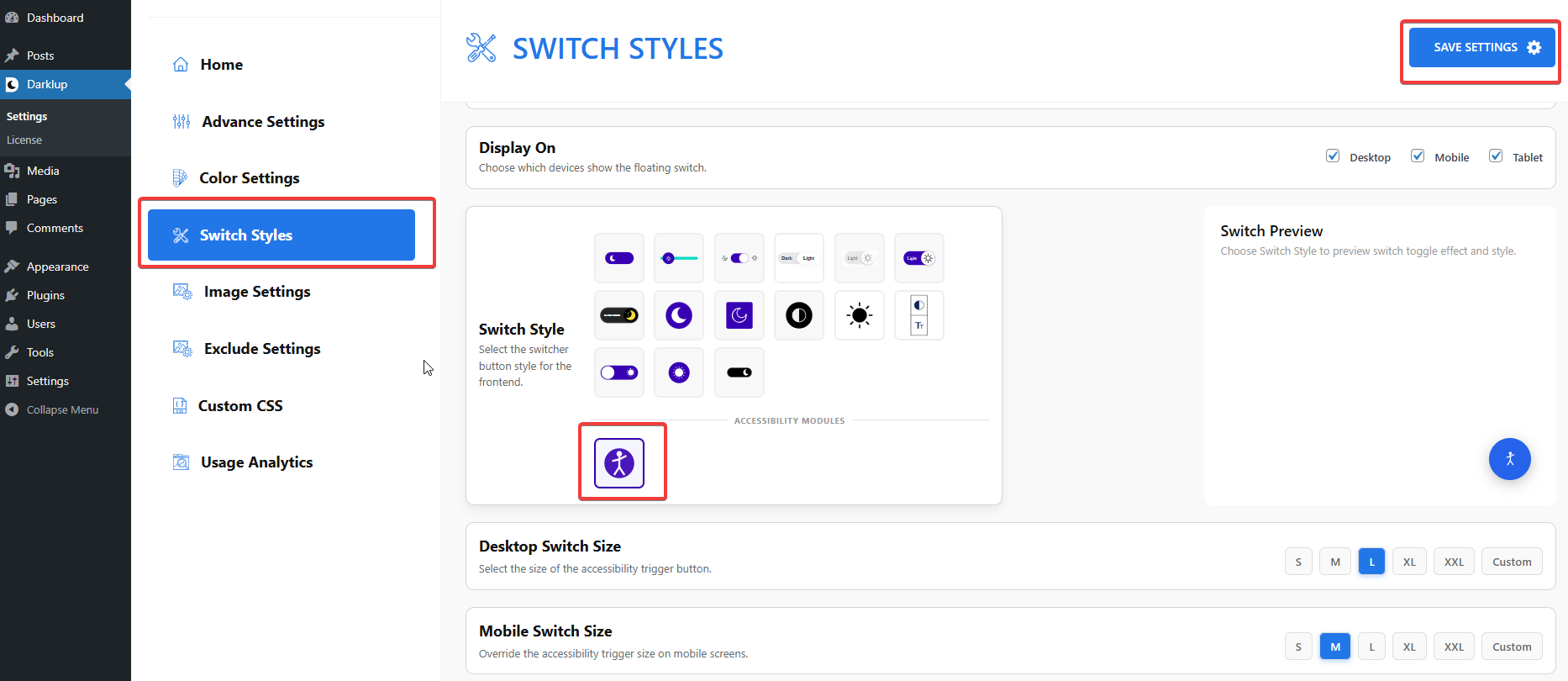
Scroll down to the Visual Aids group and make sure Highlight Links is toggled On.
Step 2: Check Your Frontend Outlook #
When a visitor clicks Highlight Links in the panel, all links on the page become visually highlighted and easy to spot.
Clicking the card again removes the link highlights.
This is how to configure Darklup Accessibility Highlight Links Module in just a few steps. If you want to get all Darklup features, visit our documentation page for a step-by-step guide.