
Darklup Accessibility Reading Mask module adds a focus strip that follows the visitor’s cursor as they move down the page. It darkens the areas above and below the cursor, helping visitors with reading difficulties, ADHD, or visual tracking issues focus on one line at a time.
This Accessibility Reading Mask module provides two semi-transparent dark overlays placed above and below the cursor position. As the visitor moves their mouse, the reading window moves with it.
Step 1: Enable Accessibility Reading Mask Module in Admin #
Go to Darklup Dashboard > Switch Styles > Floating Switch. Make sure the Accessibility Switch is selected.
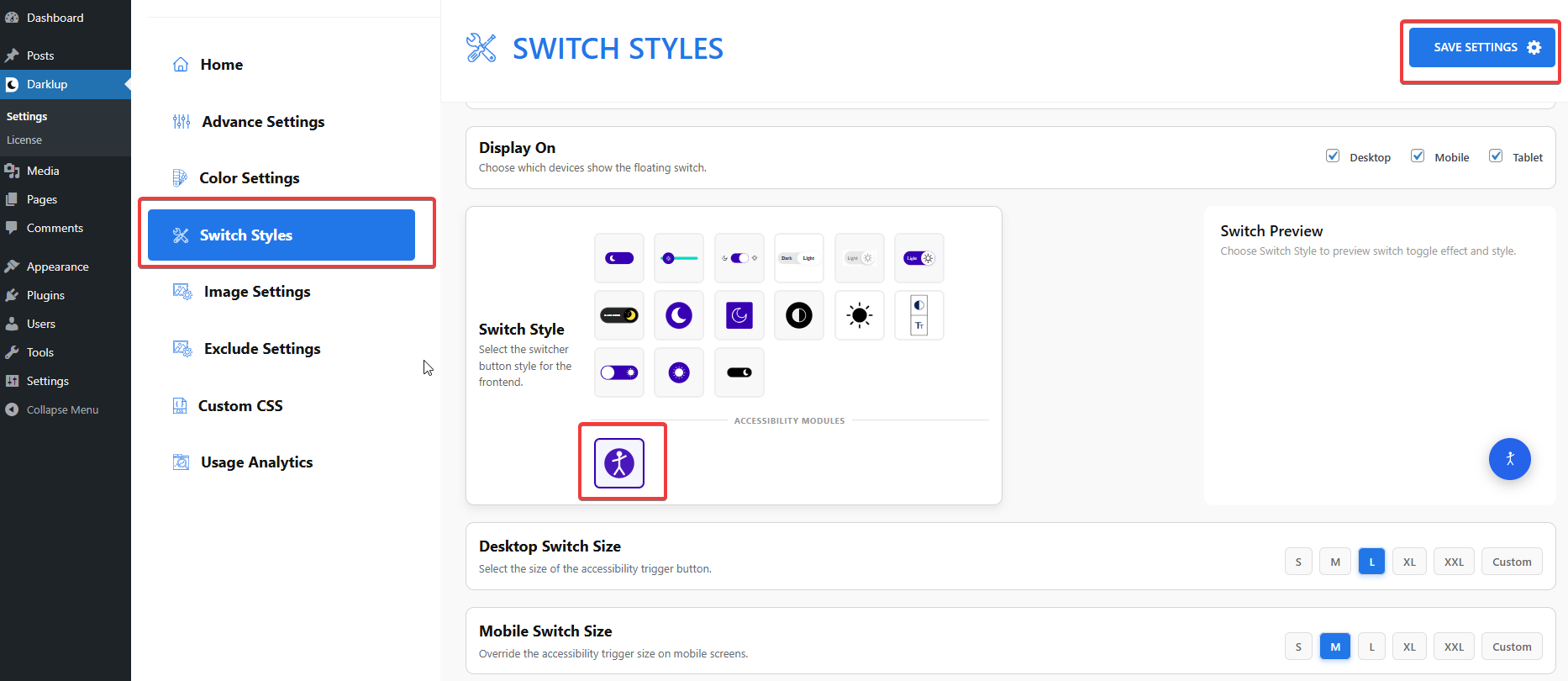
Scroll down to the Visual Aids group and make sure Reading Mask is toggled On.
Step 2: Check Your Frontend Outlook #
When a visitor clicks Reading Mask in the panel, a reading focus strip appears and follows the cursor.
Clicking the card again removes the reading mask.
Note: Reading Mask works with mouse movement on a desktop. On touch devices, it follows the last touched position.
This is how to configure Darklup Accessibility Reading Mask Module in just a few steps. If you want to get all Darklup features, visit our documentation page for a step-by-step guide.