
You can add dark mode to any WordPress website without writing a single line of code by installing a dark mode plugin. Also, you can choose a switch style and customize the look from a simple dashboard. The whole process takes about two minutes. The catch worth knowing in 2026 is that the best results don’t come from a plugin that just flips your colors. They come from one that adapts intelligently to your design, respects each visitor’s device settings, and lets people choose dark mode rather than forcing it on them.
This guide walks you through exactly how to add dark mode to WordPress websites without coding, easily and correctly. You will see the three options for adding dark mode, what separates a good plugin from a frustrating one, a full step-by-step setup, and how to test everything before you go live, all without a developer and without touching your theme files. Let’s get into it.
Why Add Dark Mode to Your WordPress Site in 2026?
Today, adding dark mode to a website is an expectation. Open almost any phone, laptop, or popular app, and you will find a built-in dark theme. Many people keep their devices in dark mode all day, especially for reading and late-night browsing. When one of those visitors lands on a blinding white page at 11 p.m., the flash of light feels jarring and a little dated.
Here’s the part that quietly affects your brand. People rarely complain about the absence of dark mode. They just feel your site is slightly behind, and they may not stay as long. A simple toggle signals that your website is modern, considerate, and built with the reader’s comfort in mind. There are real, practical wins too:
- Comfort in low light: A dark theme is gentler on the eyes in a dim room, which is why so many people switch to it at night.
- Help for light sensitivity: For visitors with photophobia or certain vision conditions, a bright screen can be painful. Dark mode can make your content unusable for them.
- Battery savings on modern phones: On OLED and AMOLED screens, dark pixels draw less power because the screen can switch individual pixels off to achieve true black, thereby extending battery life.
- A premium brand feel: A well-built dark theme makes a site look sleek and current, the same instinct behind the polished dark interfaces of premium apps.
- Better engagement: When reading feels comfortable, people stick around. Less squinting means more scrolling, more reading, and more chances to reach your call to action.
One honest opinion is that, before you switch everything to black, dark mode is not automatically better for everyone. People with astigmatism, cataracts, or some forms of color blindness can find light-on-dark text harder to read. That’s exactly why the smart move is to add dark mode as a choice your visitors control, never a setting you force on them. Keep that principle in mind, and the rest of this guide will make sense.
Three Ways to Add Dark Mode to WordPress Websites
Before the step-by-step, it helps to know your options. There are three common ways to get dark mode onto a WordPress site, and only one of them is genuinely no-code.
1. Edit your theme and CSS by hand
If you are a developer, you can write custom CSS, add a JavaScript toggle, and store the visitor’s preference yourself. This gives total control, but it’s slow, fragile, and breaks every time your theme updates. For the vast majority of site owners, it’s the wrong tool. It is also, by definition, not no-code.
2. Pick a theme that converts with dark mode
Some premium themes include a built-in dark mode. That sounds convenient, but it locks you into that theme forever. The implementation quality varies wildly, and switching themes later means losing the feature. You also rarely get fine control over how individual elements look in the dark.
3. Install a dedicated dark mode plugin
A purpose-built plugin is the fastest, most flexible, and truly code-free route. You install it, flip it on, customize from a dashboard, and you are done, usually in a couple of minutes. It works across theme changes, handles the tricky parts (images, buttons, WooCommerce pages) for you, and lets you offer the toggle as a visitor choice.
This is the path the rest of this guide follows, using Darklup, a leading no-code dark mode and accessibility plugin for WordPress, as the example. The same steps apply in spirit to most quality plugins, but Darklup’s intelligent color engine and built-in accessibility panel make it a strong fit for 2026 expectations.
What to Look For in a No-Code Dark Mode Plugin
Not all dark mode plugins are equal. The cheap ones simply invert every color on the page, which leaves washed-out photos, unreadable buttons, and broken logos. Before you install anything, check that the plugin offers these essentials:
- Smart color adaptation, not blind inversion: The plugin should adjust each element thoughtfully rather than flipping every color at once.
- OS-based detection: It should automatically match a visitor’s device settings, so the site feels right from the first second.
- A visitor-controlled toggle: Dark mode should be a choice people can switch on or off, not a forced default.
- Image handling: Photos and media should adapt sensibly, with the option to swap in a different image for dark mode.
- WooCommerce support: If you sell anything, the cart, checkout, and product pages must stay clean in dark mode.
- Performance care: The plugin should load its files efficiently rather than slow down every page.
- Customization without code: The accent color, button size and position, and which pages show the toggle should all be adjustable from the dashboard.
If a plugin ticks those boxes, you can add dark mode confidently without ever opening a code editor. Here’s how.
How to Add Dark Mode to WordPress Without Coding (Step by Step)
This is the core of the guide. Follow these steps, and you will have a working, visitor-controlled dark mode on your site in roughly two minutes.
- Install and activate the plugin: In your WordPress dashboard, go to Plugins → Add New, search for “Darklup,” then click Install Now and Activate. If you prefer to grab it directly, you can install the free version from the WordPress.org plugin directory, or go straight to Pro for the full toolset. Activation takes about a minute.
- Open the plugin dashboard: Once activated, a new Darklup menu item appears in your WordPress sidebar. Click it to open the settings. Everything from here on is point-and-click.
- Choose your switch style: Go to Switch Styles and open Floating Switch. Pick the toggle design that matches your brand. You can choose from a wide range of floating switch styles and place it exactly where you want it on the page.
- Turn on OS-based detection: Enable OS-based dark mode so the site automatically matches each visitor’s device preference on macOS, iOS, Windows, and Android. This makes your site feel tailored before anyone clicks a thing.
- Customize the look: Set your accent color, button size, and position. Decide which pages, posts, or categories should show the toggle and which should hide it. Use the live preview to see your changes as you make them.
- Save and go live: Click Save. The toggle appears on your live site immediately. Open your homepage in a new tab, click the switch, and watch your site move smoothly into dark mode, no code, no rebuild.
That’s the entire process. You can come back and change any setting at any time without breaking anything, because nothing was hard-coded into your theme.
How to Customize Your Dark Mode
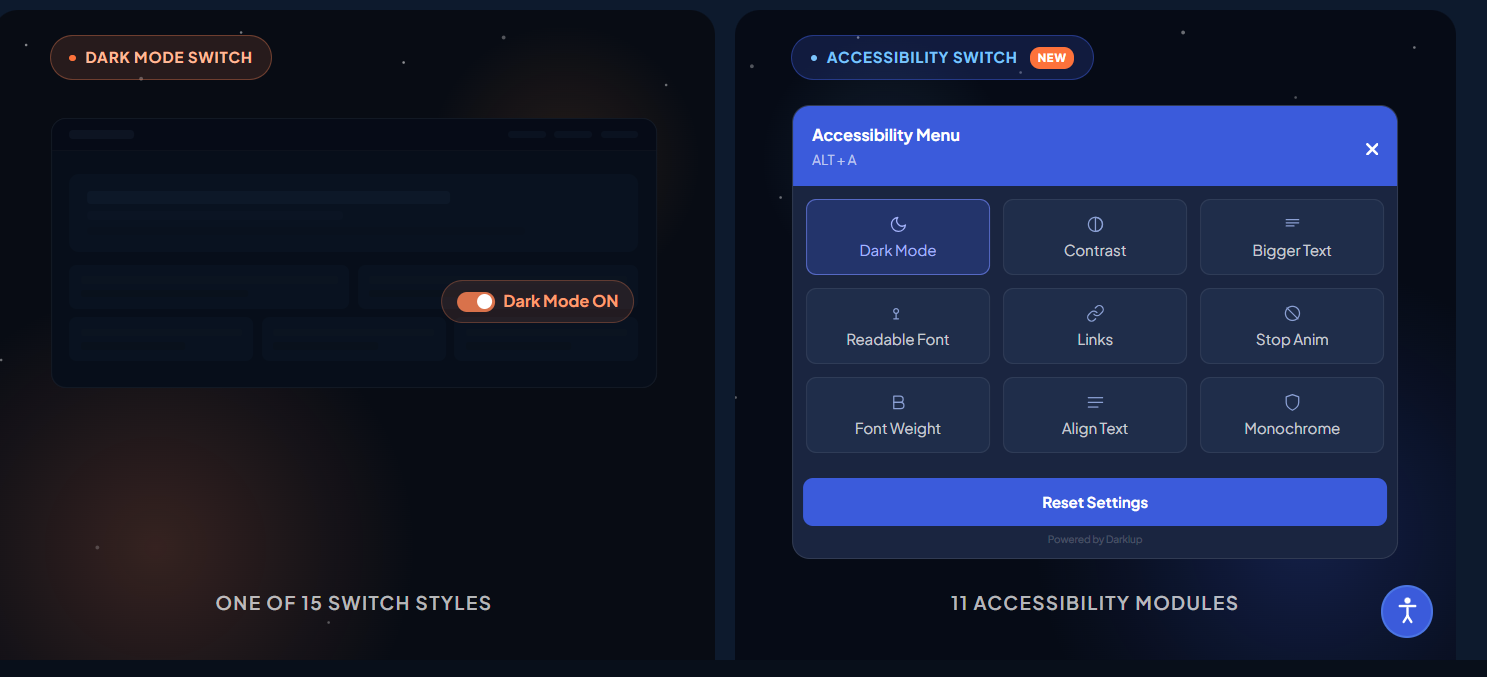
Once the basics are in place, a few extra settings make the experience feel polished and on-brand. All of these are toggles and pickers in the dashboard, no code required.
Match your brand colors
Set the accent color of the switch and panel so they sit naturally inside your design. A toggle that clashes with your palette reads as bolted-on; one that matches reads as intentional.
Schedule dark mode by time of day
Time-based dark mode follows a schedule you set, for example, bright through the day and dark in the evening. This is a nice touch for content sites where a lot of reading happens at night, while still letting visitors override it whenever they like.
Remember each visitor’s preference
A good plugin saves a visitor’s choice in their browser and applies it on every page and every return visit. With Darklup, this happens automatically, so a reader who picks dark mode once never has to pick it again.
Handle images the right way
Bright photos that don’t adapt can blast a visitor’s eyes, and inverting them ruins their colors. Use image replacement to show a darker-friendly version of a logo or graphic in dark mode, and rely on the plugin’s smart engine to leave true photos looking natural. For anything tricky, custom CSS is available, but you’ll rarely need it.
Make It WooCommerce-Ready Without Touching Code
If you run a store, dark mode has to work where it matters most, like the shop, product pages, cart, and checkout. This is exactly where cheap plugins fall apart, styling the homepage nicely but breaking the very pages that make you money.
A WooCommerce-aware plugin keeps product grids, single product pages, cart, and checkout clean in dark mode, with product images staying true to life. Hence, customers see colors accurately before they buy. With Darklup, WooCommerce support is built in, so you don’t need a developer to patch the store pages manually.
Switch it on, visit your shop in dark mode, and confirm that prices, buttons, and product photos all read clearly. A comfortable, consistent checkout reduces friction, and less friction means fewer abandoned carts.
Don’t Stop at Dark Mode: Add an Accessibility Panel Too
Here’s the 2026 mindset shift, and it’s worth a minute of your time. Dark mode is one comfort setting. It helps night readers and light-sensitive people, but it does almost nothing for someone who needs larger text, a clearer font, stronger contrast, or a keyboard-friendly way to navigate. True accessibility means giving each visitor a small set of controls so they can shape the page around their own needs.
This matters more than ever because accessibility now carries legal weight. The European Accessibility Act has been in force since June 28, 2025, and it can apply to businesses outside the EU that sell to EU customers, with penalties that reach significant sums in some countries. The standards behind it are based on the widely adopted WCAG 2.1 Level AA guidelines. You don’t need to become a compliance expert overnight, but offering visitor controls clearly moves you in the right direction.
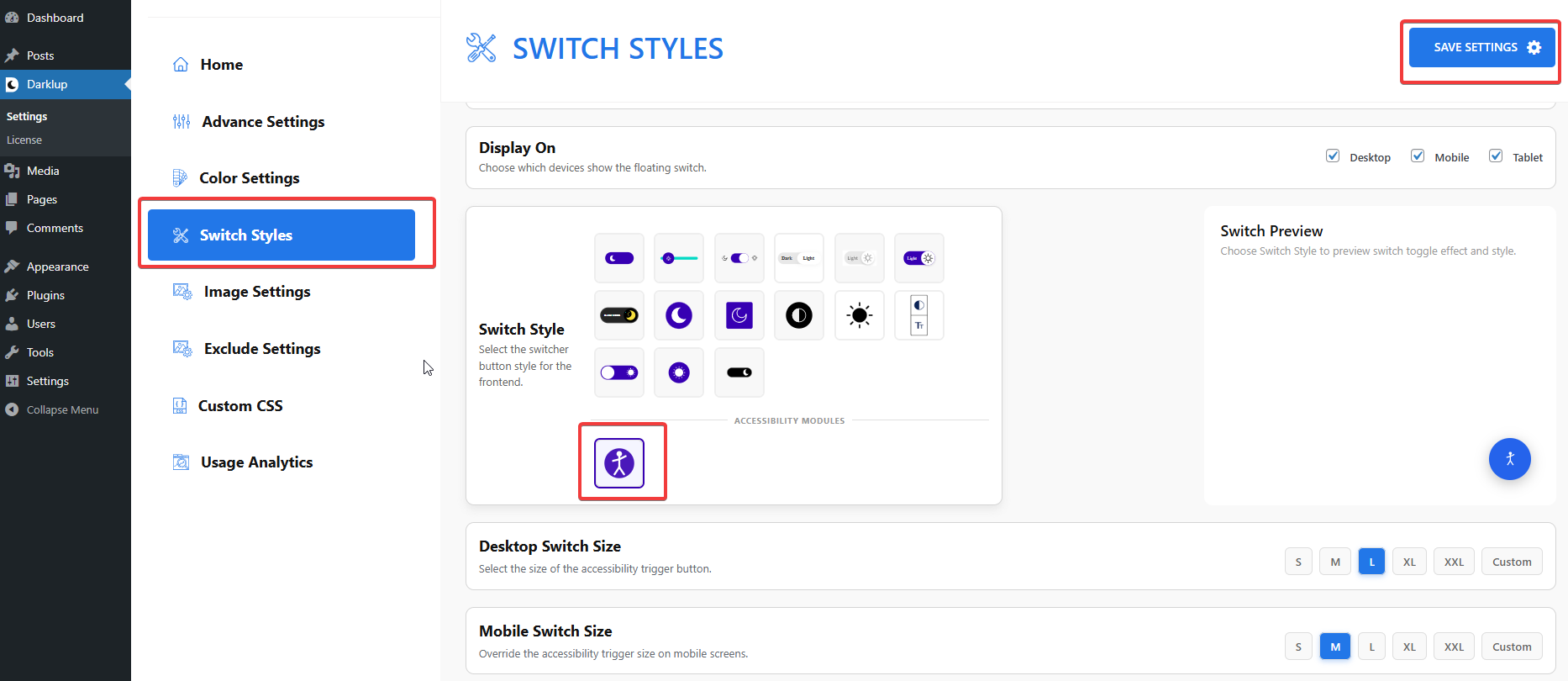
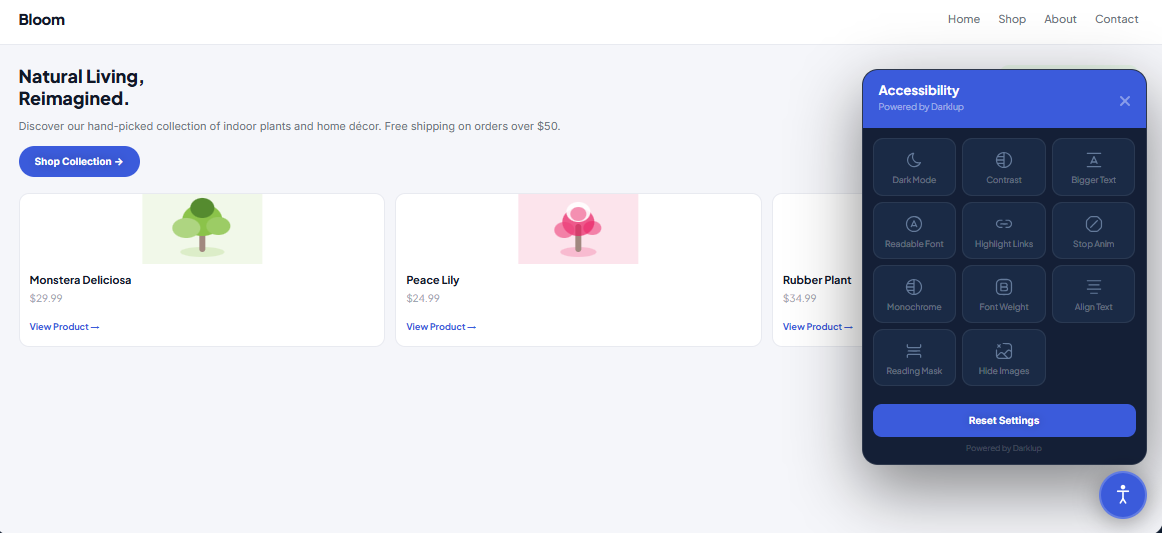
The good news is that the same no-code plugin can cover both. Instead of only a dark mode button, Darklup can show an Accessibility Switch that opens a panel of ready-to-use tools your visitors can pick from themselves, including:
- Dark Mode: one option among many, never forced on anyone.
- Contrast modes: for people who need a stronger contrast to read clearly.
- Bigger Text: larger text that doesn’t break your layout, so there’s no need to pinch-zoom.
- Readable Font and Font Weight: a cleaner font and bolder letters for easier reading.
- Reading Mask: highlights one line at a time and dims the rest to help people keep their place.
- Stop Animations, Hide Images, Highlight Links, Monochrome, and Align Text: small but powerful controls for focus, comfort, and clarity.
Switching from a plain dark mode toggle to the full accessibility panel is itself a no-code change. In the Darklup dashboard, open Switch Styles, go to Floating Switch, select the Accessibility icon, and save. Each visitor’s choices are remembered on every page and on future visits, and the panel is keyboard-friendly.
An accessibility panel improves the experience for many visitors, but it’s a user-facing comfort tool, not a full code audit. It supports your accessibility efforts. It doesn’t make a site fully WCAG-compliant on its own. Being upfront about this makes your content more credible, not less.
Common Dark Mode Mistakes to Avoid
Adding dark mode is easy. Adding it badly is also easy. Steer clear of these traps, and you will be ahead of most sites:
- Forcing dark mode by default: It hurts the large share of visitors who read better on a light background. Always let people choose.
- Using a plugin that just inverts colors: Blind inversion leaves photos washed out, buttons unreadable, logos broken, and strange tints. Choose a plugin that adapts each element thoughtfully.
- Ignoring images and media: Bright photos that don’t adapt can hurt the eyes, and product shots can lose their true colors. Images need care, not a blanket filter.
- Forgetting WooCommerce pages: Make sure the cart and checkout look right, not just the homepage.
- Treating dark mode as the whole accessibility story: It helps comfort, but it does nothing for someone who needs bigger text, stronger contrast, or keyboard navigation.
- Slowing down the site: Avoid plugins that load large files on every page. Speed matters for visitors and for SEO.
How to Test Your Dark Mode Before Going Live
Before you announce your shiny new dark mode, spend five minutes checking it properly—no tools needed beyond your own devices.
- Check your homepage, a blog post, a landing page, and, if you sell, a product page and the checkout. Look for unreadable text or buttons that blend into the background.
- Make sure photos still look natural, and your logo is visible against the dark background. Swap in a dark-friendly version where needed.
- Set your phone to dark mode and visit the site to confirm OS-based detection works and the layout holds up on a small screen.
- Tab through the toggle and, if you enabled it, the accessibility panel. Everything important should be reachable without a mouse.
- Switch to dark mode, move to another page, then return. Your choice should be remembered.
If all five check out, you are ready to share it with your visitors.
Who Should Add Dark Mode Without Coding in 2026?
| Site type | Preference | Why |
| Online store / WooCommerce | Strongly yes | Comfort, a smoother checkout, and a possible legal duty |
| Blog/content site | Yes | Longer, more comfortable reading and lower bounce |
| Business/corporate | Yes | Looks modern, signals inclusion, supports compliance |
| Portfolio/photography | Yes (with care) | Use a smart mode that keeps images true to color |
| Membership / SaaS | Yes | Users expect app-like comfort and controls |
| Anyone selling to EU customers | Yes, as a priority | Accessibility expectations now carry legal weight |
If your site is on this list, and almost every WordPress site is, the no-code route gets you there in minutes.
Use Darklup & Add Dark Mode to a WordPress Website
Adding dark mode to a WordPress website without coding is genuinely a few-minute job. You need to install a quality plugin, choose a switch style, customize it from the dashboard, and publish. The difference between a quick win and a polished result comes down to the plugin you choose: one that adapts to your design rather than inverting it, respects each visitor’s device preferences, and offers dark mode as a choice rather than forcing it.
In 2026, the smartest move is to go one step further by pairing that toggle with a small accessibility panel, so your site works comfortably for far more people and stays aligned with where the web and the law are headed.
Darklup gives you both in a single, no-code plugin, with a free version to start and Pro plans when you are ready for the full toolkit. Make your site easier on the eyes and open to everyone. Get started with Darklup today.
And if you want to read more useful blogs like this, don’t forget to subscribe to our blog page. Stay tuned!
