
We are thrilled to announce that Darklup v4.0.0 introduces a powerful Accessibility module with 11 customizable tools to make websites easier to read, navigate, and interact with, along with full dark mode support.
This update ensures your site is inclusive for all users, including visitors with visual impairments and those who prefer simplified navigation or larger text.With this advanced accessibility support, Darklup introduces dark mode to better serve our user base and future potential customers. Additionally, Darklup Accessibility Module panels are available for both free and premium features.
At a Glance: Darklup Accessibility Modules Overview
Contrast & Color
- Dark Contrast: Activates a high contrast dark mode for better readability
- Light Contrast: Forces bright white backgrounds with dark text for a clean look
- High Contrast: Boosts text-to-background contrast to make content stand out
- Monochrome: Converts all colors to greyscale, reducing visual strain
Typography
- Bigger Text: Enlarges all text for easier reading
- Readable Font: Applies a simple sans-serif font, ideal for dyslexic users
- Font Weight: Boldens body text for stronger visual contrast
- Align Text: Allows visitors to cycle through left, center, or right text alignment
Visual Aids
- Highlight Links: Makes all links visually prominent.
- Reading Mask: Adds a focus strip following the cursor for easier line tracking
- Hide Images: Removes all images to reduce distraction
Stop Animations: Pauses all CSS animations for motion-sensitive visitors
You can easily activate each module and make the changes on your website instantly from the panel, giving users full control over their reading experience.
How to Enable Darklup Accessibility Panel
If you want to manage and activate Darklup Accessibility’s new panel, you can do that by following the simple steps below: First, navigate to Darklup Dashboard > Switch Styles > Floating Switch.
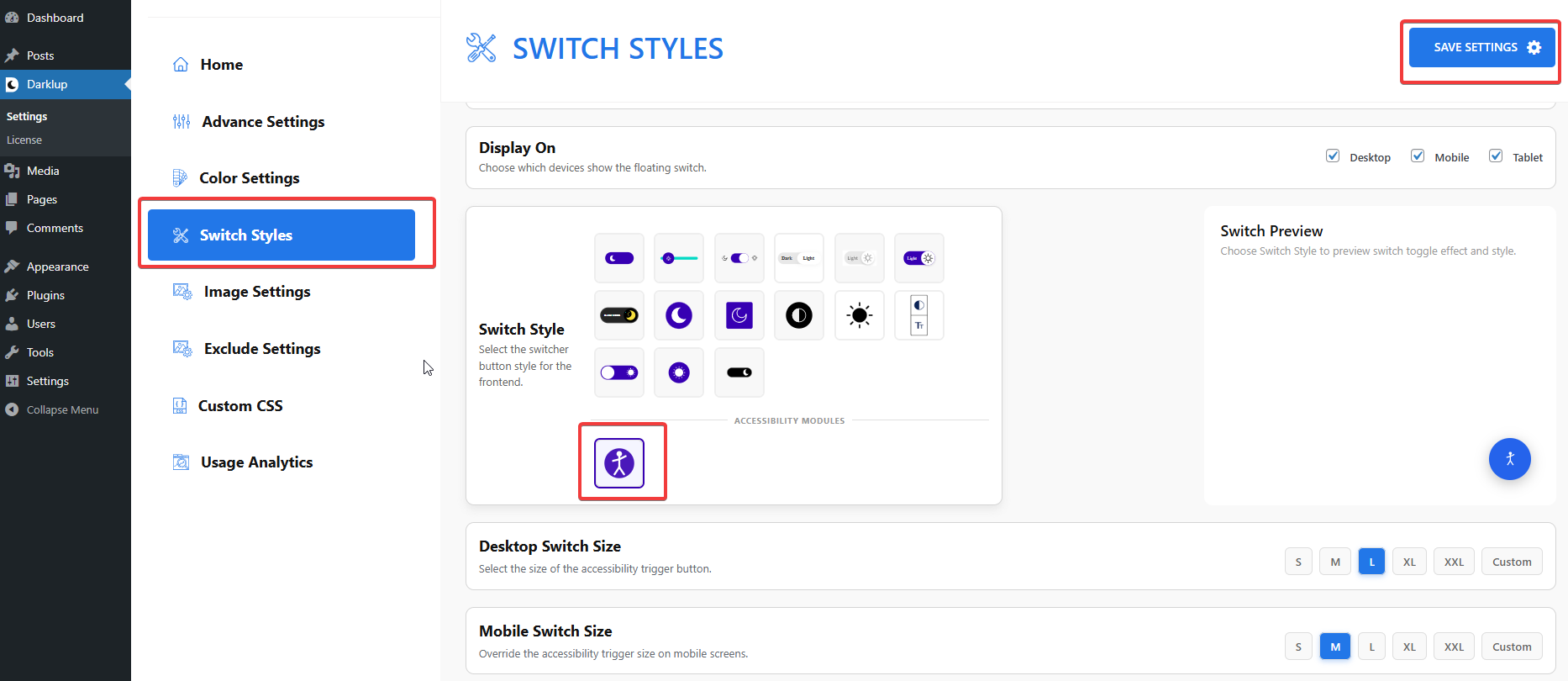
Next, scroll to Accessibility Modules, select the accessibility icon, and click Save Settings.
Afterward, check your website frontend. A floating accessibility button appears in the bottom-right corner.
Video
This is it! The button opens the accessibility panel, providing visitors instant access to all tools.
Manage Which Accessibility Modules Appear or Not
You can turn modules on or off to get full control over the Darklup Accessibility module panel. Just follow the simple steps below:
Again, navigate to Dashboard > Switch Styles > Floating Switch.
Now, scroll to module toggles under Contrast & Color, Typography, and Visual Aids.
Afterward, switch modules On or Off, then click Save Settings.
VideoYou can see that modules set to Off won’t appear on the frontend, giving you control over the user experience.
Try Darklup New Accessibility Module Today!
This update focuses on inclusivity, ensuring your website can be enjoyed by everyone with dark mode and an accessibility solution, all in one plugin for WordPress users. Now, the visitor has a visual impairment, ADHD, motion sensitivity, or simply prefers larger text.
So what are you waiting for? Darklup v4.0.0 is ready to enhance your website’s user experience. Activate the accessibility panel and explore all 11 exclusive modules to create an inclusive, user-friendly environment.
For a full step-by-step guide, visit our Darklup Accessibility Documentation, and for exciting tutorials, visit our YouTube channel.
