
By far, the dark mode is one of the coolest systemic features introduced to apps and websites. It works magically to increase the overall interface’s aesthetic appeal and protects your eyes from the blue light of the screen.
In today’s write-up, we aim to assist WooCommerce website owners and admins upgrade the look and feel of their stores with just a few WordPress tweaks. By strategically using the dark mode in WooCommerce stores, you can significantly elevate the shopping experience for your loyal customers.
In this guide, you’ll find comprehensive guidelines on how to activate WooCommerce dark mode, important customization, and application tactics for better store performance and increased impressions. Stay tuned!
Table of Contents
WooCommerce Dark Mode: What is it?
The WooCommerce dark mode is a system setting that changes the visual appearance of your interface.
Most of the on-screen elements will adapt to a darker shade with a darker background in this mode. However, the interactive elements such as icons, images, and text will retain their original shade/color in contrast to the dark background on the screen.
Fun fact – the dark mode doesn’t necessarily equate to high-contrast mode. The dark mode style, especially the WooCommerce dark mode, isn’t binary i.e. the color palette isn’t restrictive to stark colors.
Hence, it’s much easier on the eyes and in turn, prevents headaches and issues with night vision. Additionally, if you suffer from migraines, switching to the dark mode can actually benefit you greatly.
Since stark light is often a trigger for people with migraines, using dark mode can help you to avoid it.
The WooCommerce dark mode is revolutionary for mobile users who prefer to shop at night. The dark interface is easier on the eyes and doesn’t strain them. Furthermore, it provides a sleek and modern outlook.
Step-by-Step Guide on How to Enable Dark Mode in WooCommerce
If you’re using any of the WordPress dark mode plugins, WooCommerce dark mode activation can be done free of cost. Here’s a step-by-step guide to help you navigate the installation procedure smoothly:
Step 1: Activate the WooCommerce Plugin
Well, to install the WooCommerce dark mode plugin, you will need to activate WooCommerce first. To install and activate the WooCommerce plugin, simply go to your WordPress admin dashboard.
The route is as follows: WP Admin > Plugins > Add New Plugin.
In the Add New section, search for WooCommerce and then install and activate it to start your ecommerce journey.

If you’ve already installed the WooCommerce plugin, feel free to skip this step.
If you already know your way around WooCommerce, we recommend following this guide from step 3.
Step 2: Configure Your WooCommerce Store
After installing the WooCommerce plugin, it’s time to configure your store. Skip this step if your store is up and running already.
Select your product niche, define which themes and store elements you’d like to use, etc. Complete your store setup by uploading your product images, adding descriptions, purchase links, etc. Make sure to include authentic products and images to attain more credibility with store visitors.
Choose your theme and interface elements carefully, especially if you want to install the dark mode later. Think about which colors and shades will pop better with a darker background. Avoid using dark-colored button texts or icons as they won’t pop well later on.
Step 3: Activate The Dark Mode Plugin
To activate the dark mode plugin, go to the WordPress admin dashboard again. Then search for Darklup in the search section to activate it. The route is pretty straightforward: Darklup Lite > Install Now > Activate.
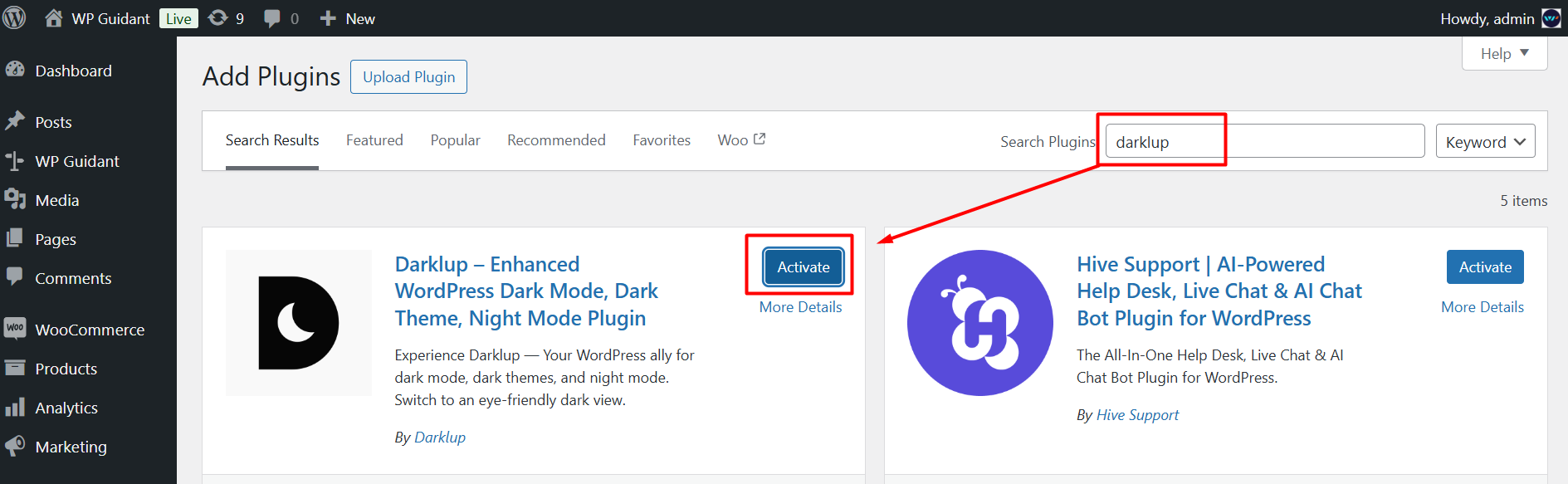
If needed, you can refer to this documentation on how to install and activate Darklup lite.
It’s free to install, so don’t worry about any extra costs. However, if you’d like to elevate the dark mode experience and make use of extra features, you can go for Darklup Pro version!
Step 4: Save, Preview, and Launch
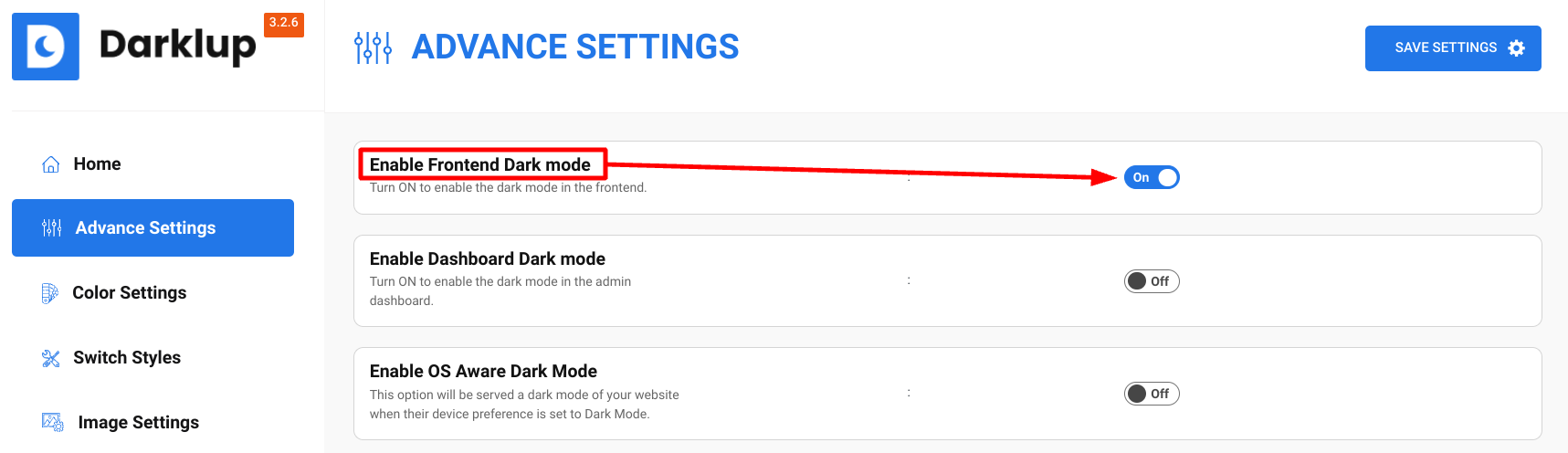
That’s it! There are no additional steps/settings for the WooCommerce dark mode activation. Just make sure to keep “Enable Frontend Dark mode” turned on from the advanced settings of Darklup, as shown below:
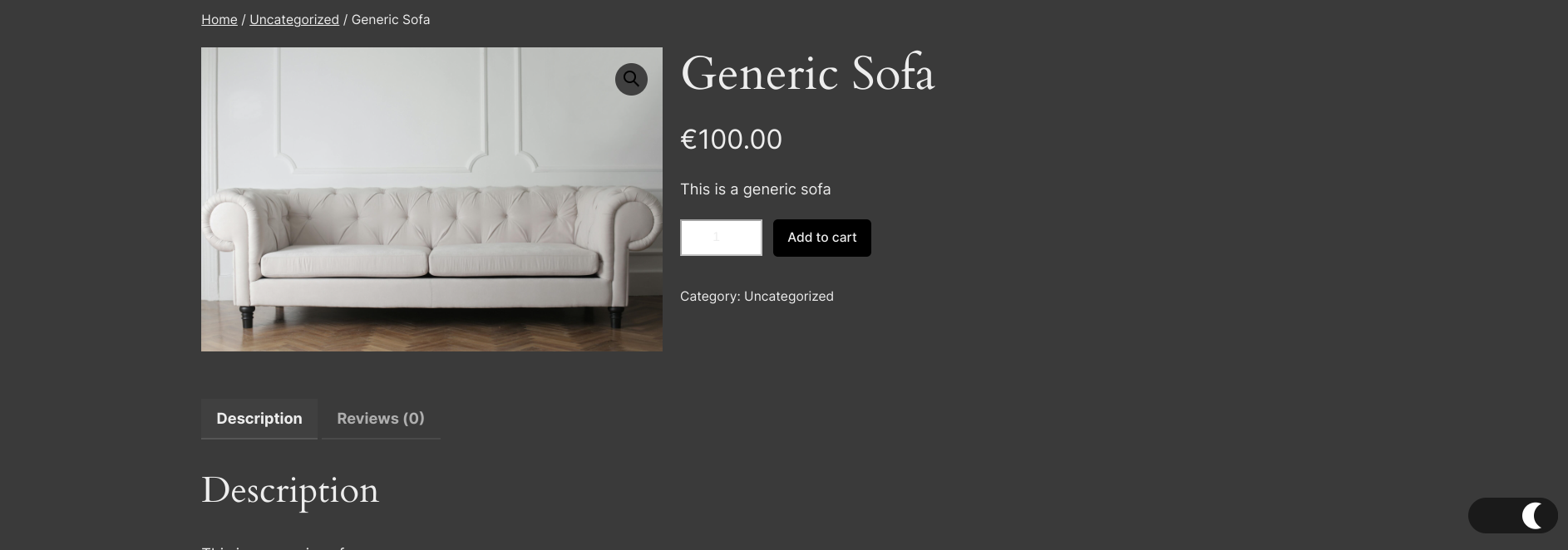
This will automatically add a dark interface and a dark mode toggle on your WooCommerce shop page, product pages, cart page, etc.
Also, make use to customize your dark mode settings before launching your store’s dark interface, such as:
- Change the background colors, font size, color, style, etc. to make your store look as flawless as possible.
- Design your product pages with WooCommerce dark mode customization features for better interactivity.
- Create an immersive experience for your users and elevate their shopping experience indefinitely. Use contrasting elements to highlight product text & icons.
- Use vibrant colors to make sure important button texts and the add-to-cart icons stand out from the rest.
- Overall, customize captivating product pages for your WooCommerce stores to complement the dark mode.
You can also exclude/exclusively include certain WooCommerce products and categories for dark mode by referring to this documentation.
Save the changes, preview them to fix any mistakes, and launch the brand new dark mode for your WooCommerce store.
Dark Mode Customization Features in WooCommerce
In WooCommerce, dark mode customization features can help greatly to assert your brand identity & image. Here’s a brief overview of some of the core customization features in WooCommerce dark mode:
Color Modifications
Adjust the background color, text shades, etc. to customize the color palette in the dark mode.
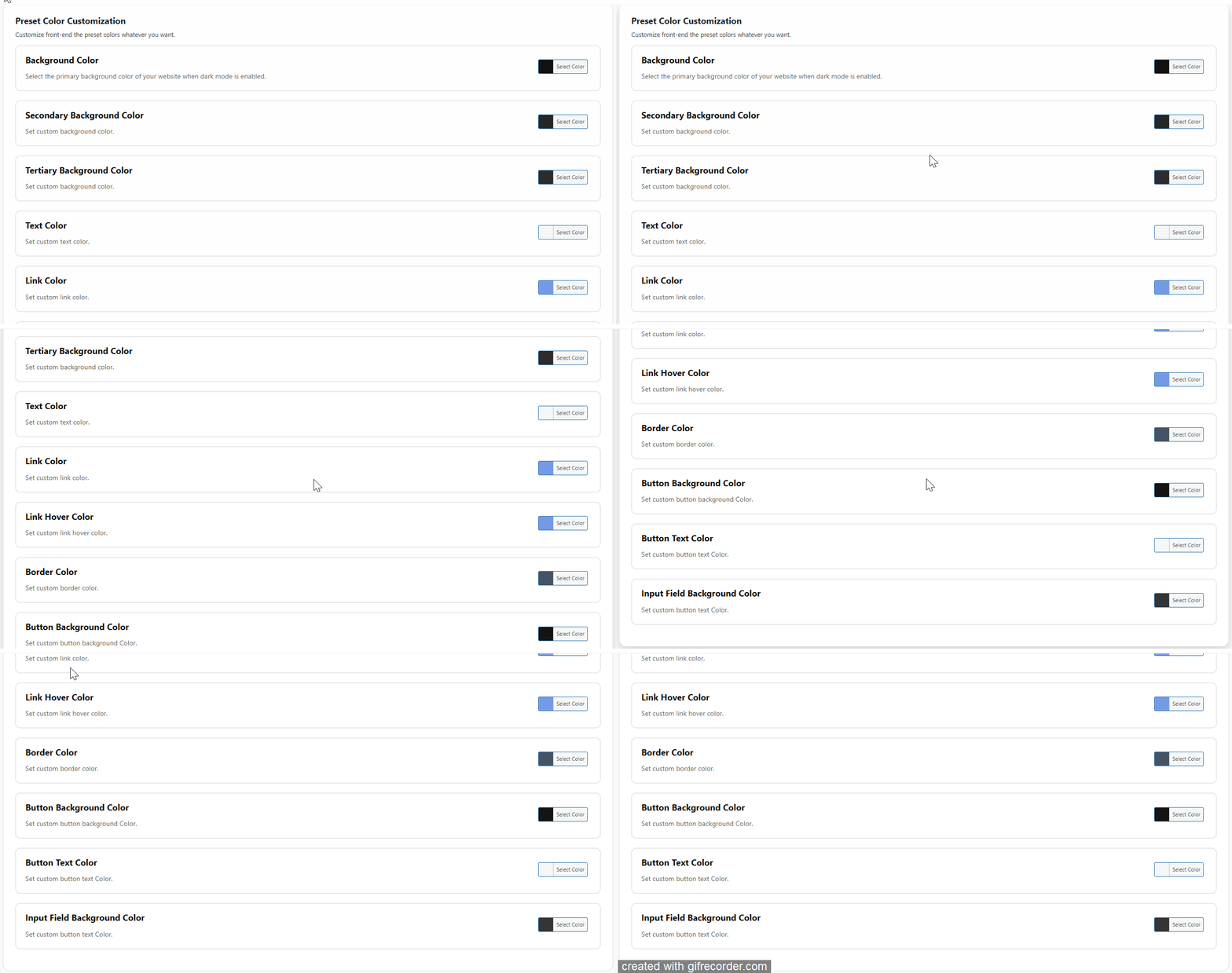
We highly recommend choosing lighter shades of color to highlight the texts in the dark background. Choose bright colors to complement the dark background so that they’ll grab the visitor’s attention.
Modern Font Styles
Select your desired fonts for your e-commerce stores. Choose professional, business font styles to appear classy and modern before the visitors.
As an e-commerce store owner, your goal is to increase website impressions. And for increased impressions, you need increased website engagement.
By enabling modern font styles in the dark mode settings, you can increase the readability manyfold. Place light and clear texts on the dark background so that web visitors can read and understand them easily.
Light-to-Dark Mode Toggles
You can enable a separate toggle for the visitors to ensure a user-specific interface experience.
Let your users effortlessly transition from light to dark mode and vice versa. By enabling mode toggles, users can choose and switch between the light and dark modes themselves. This can, in turn, help you build better rapport with the store visitors.

Testing and Optimizing WooCommerce Dark Mode: Tips to Enhance User Experience
Now that you’ve completed all the ‘creation-camp’ steps and brainstormed different ideas, it’s time to test and optimize the dark mode interface.
Here are a couple of insider tips to enhance user experience after enabling the dark mode settings:
Check Mobile Responsiveness
Check to see if your dark mode-optimized WooCommerce store is running smoothly on mobile devices like smartphones, tablets, etc.
Remember that the majority of online users browse WooCommerce platforms and product stores via their mobile devices. Hence, it’s important to see if your store is operating at the same speed as before after implementing the dark mode settings.
Otherwise, you could stand to lose a lot of visitors and loyal users as they won’t be able to navigate your store and its products as quickly and easily.
Test Website Loading Speed
Check your website performance by testing the website’s loading speed with Google’s Pagespeed Insights or other tools. Sometimes, the dark mode settings can cause a system overload and decrease the loading speed. This, in turn, increases bounce rates.
Analyze Cross-Browser Compatibility
Test your new stores on multiple browsers and also across different device types to check if it’s operating smoothly everywhere. In addition to Google Chrome, check your revamped store on contemporary search engines like Brave, Safari, etc.
Get Feedback from Focus Groups
If you’ve got the time, you can set up a couple of focus groups to conduct controlled tests about your new store outlook. Prepare questions that outline your concerns about font style, color selection, etc.
Get feedback from different focus groups to ascertain what they liked and what they didn’t. Change your interface and dark mode settings accordingly.
How Can Dark Mode Features Help E-Commerce Stores?
The dark mode feature is great for all online platforms and not just e-commerce stores. For starters, it looks amazing and complex. And most importantly, it’s eye-friendly as the screen brightness is lowered significantly with the dark mode settings.
Apart from these, here’s how dark mode features can exclusively help e-commerce stores:
Improved User Experience
By ensuring that your users can comfortably browse the store products without straining their eyes, you can achieve an improved user experience.
Nowadays, most customers enjoy the low light and dark ambiance. Hence, by applying the dark mode features, you can cater to their display needs. Satisfied customers are more likely to stick around longer and support your e-commerce business.
Exclusive Appearance
The WooCommerce dark mode plugin can give your store a sleek and exclusive appearance.
It’s useful to promote your brand image and add that mysterious element to your brand identity.
Online customers thrive on the aesthetic appeal of WooCommerce stores. By tweaking the dark mode customization features, you can effortlessly create a modern and dynamic interface to grab the attention.
Low Bounce Rates
If visitors find your layout interesting, they’re more likely to stick around longer.
It’s reported that most WooCommerce users browse online stores late at night, preferably before falling asleep.
Hence, they find the low light of the dark mode comfortable and inviting compared to bright interfaces in light mode. By using engaging elements and contrasting yet comforting features, you can secure low bounce rates with the dark mode plugin.
Brand-Specific Customization
Elevate your brand identity by enabling the dark mode features in your WooCommerce stores.
Follow a brand-specific color palette and font style that goes best with the dark background. Improvise the elements constantly to increase the aesthetic appeal of the overall interface. Use dynamic and contrasting colors for a sleek & eye-catching outlook.
And to utilize the full benefits of Dark Mode in WooCommerce and all other aspects of your website, try switching to Darklup Pro:
Frequently Asked Questions
- Can WooCommerce dark mode influence SEO?
Dark mode doesn’t directly contribute to SEO, however it has several indirect influences. For instance – your store’s revamped outlook can generate more impressions and increase website user engagement. This can, in turn, improve your SERP rankings.
- Is WooCommerce dark mode free to install?
Yes, like the WooCommerce plugin itself, the dark mode plugin is free to install and use for everyone. You can easily create your e-commerce stores with WooCommerce & apply the dark mode for free.
- Can I disable dark mode anytime I want to?
Yes, you can disable the dark mode settings in your WooCommerce stores anytime you need to. Simply go to WP Admin and then Settings to check all your plugins. Uninstall the Darklup Lite plugin to disable it.
Wrap-up
By enabling dark mode in WooCommerce stores, you can visibly modernize your store appearance.
It’s a great WordPress plugin to readily improve the overall user experience significantly. However, make sure that your brand image and interface elements align well with the dark mode settings.
If you use exhaustive elements, it can cause the eyes to strain even more and that’s no bueno. Before launching the new interface publicly, in-house trials should always be conducted first to test the responsiveness.
We hope you find the best dark mode settings that match your brand image and style. Optimize it correctly to curate your very own designer store!
